Microsoft Entra ID Setup
Provision users from Entra ID to Odeus using SCIM.
Microsoft Entra ID Setup
Provision users from Entra ID to Odeus using SCIM.
Overview
This guide walks you through configuring SCIM user provisioning with Microsoft Entra ID. You'll connect your existing Enterprise application to Odeus's SCIM endpoint and configure automatic user synchronization.
Once complete, user changes in Entra ID will automatically sync to Odeus.
Setup Checklist
Verify that you have completed these steps from the setup checklist:
- SAML already configured for your Odeus workspace
- An existing Enterprise application set up for SAML (see Microsoft Entra ID SAML Setup)
- An Entra ID account with the rights to manage Enterprise applications
Configure Connection
1. Navigate to the Enterprise application that you set up for the SAML connection in your Azure Portal (as described in https://docs.odeus.ai/settings/security/entra).
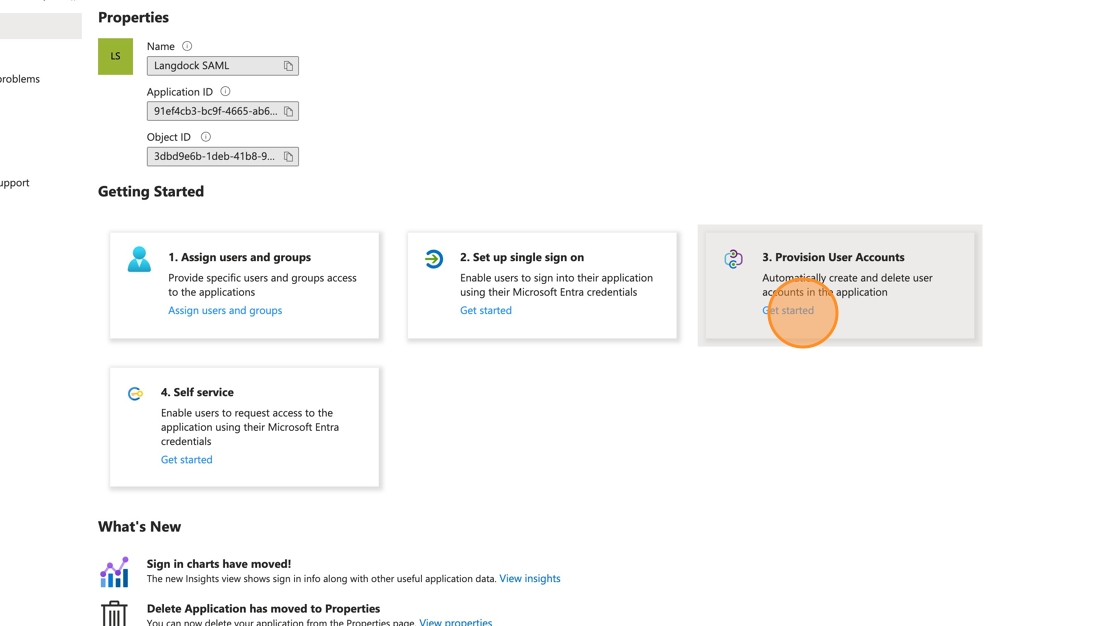
Click on "Get started" under "Provision User Accounts".
2. Click "Connect your application"

3. Go over to your Odeus security settings and copy the "SCIM Base URL" value.

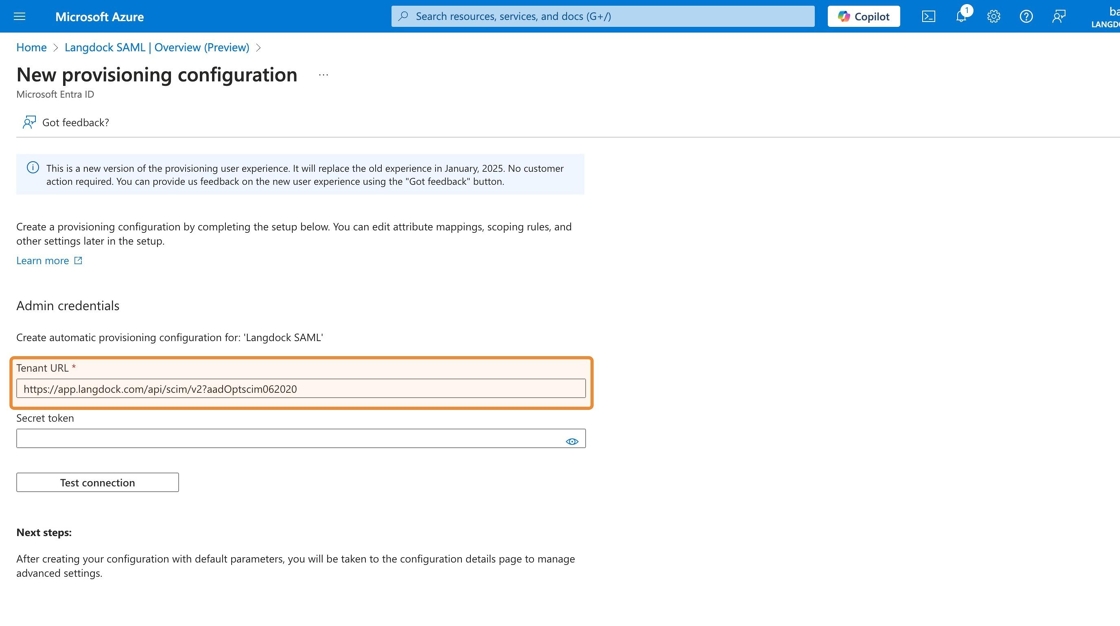
4. Back in your Azure Portal, enter the SCIM Base URL into the "Tenant URL" field and (!) append ?aadOptscim062020 to the end of the URL to fix known issues in Microsoft's implementation of the SCIM protocol.
Your final "Tenant URL" will look like this: https://app.odeus.ai/api/scim/v2?aadOptscim062020
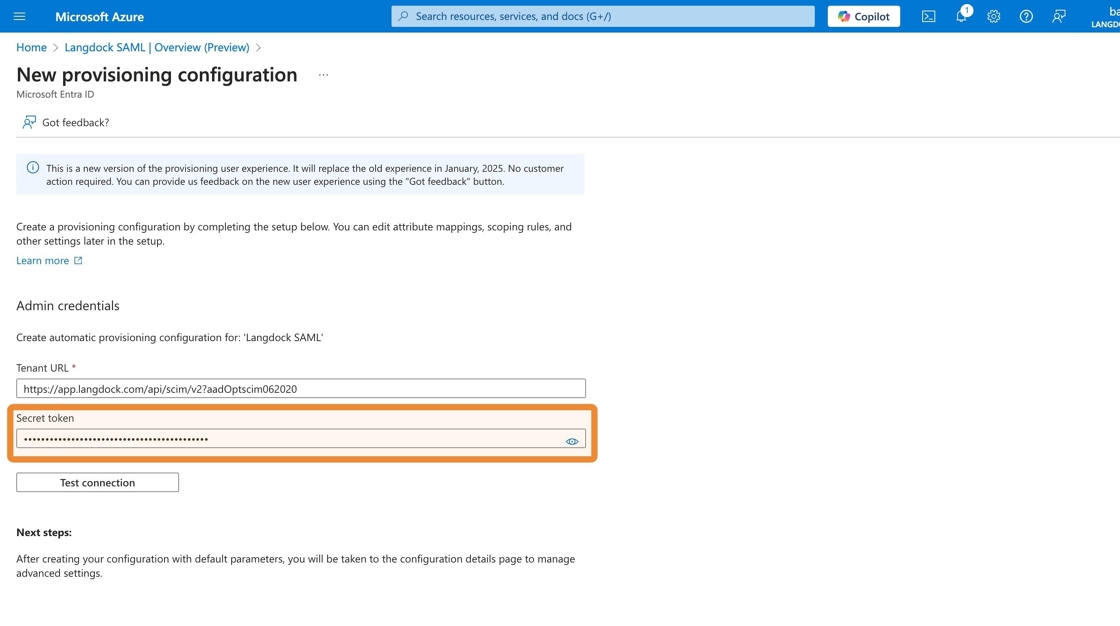
5. Copy the "SCIM Bearer Token (API Key)" value from your Odeus security settings...

6. ...and paste it into the "Secret token" field in your Azure Portal.
7. Toggle "SCIM User Sync Active" to enable SCIM for your workspace in your Odeus security settings. This is required to test the connection.

8. Back in your Azure Portal click on "Test connection" and you should see a message confirming that the connection between Entra ID and Odeus is working.
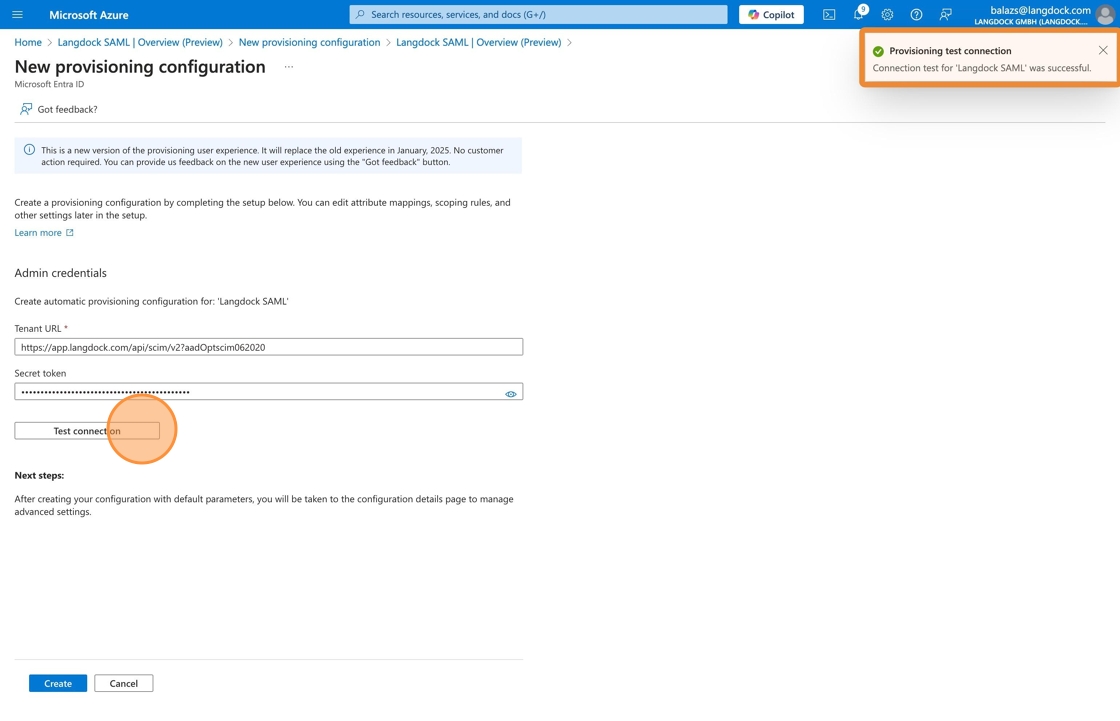
9. Click "Create" to finish the configuration

Optional: Disable group synchronization
10. (Optional) To customize your provisioning settings, go to "Manage" > "Provisioning". You might need this if you want to only synchronize users (but not groups) or if you want to disable one or more types of object actions (create, update or delete).
E.g. to disable synchronizing groups, click on "Mappings" and follow the optional steps below
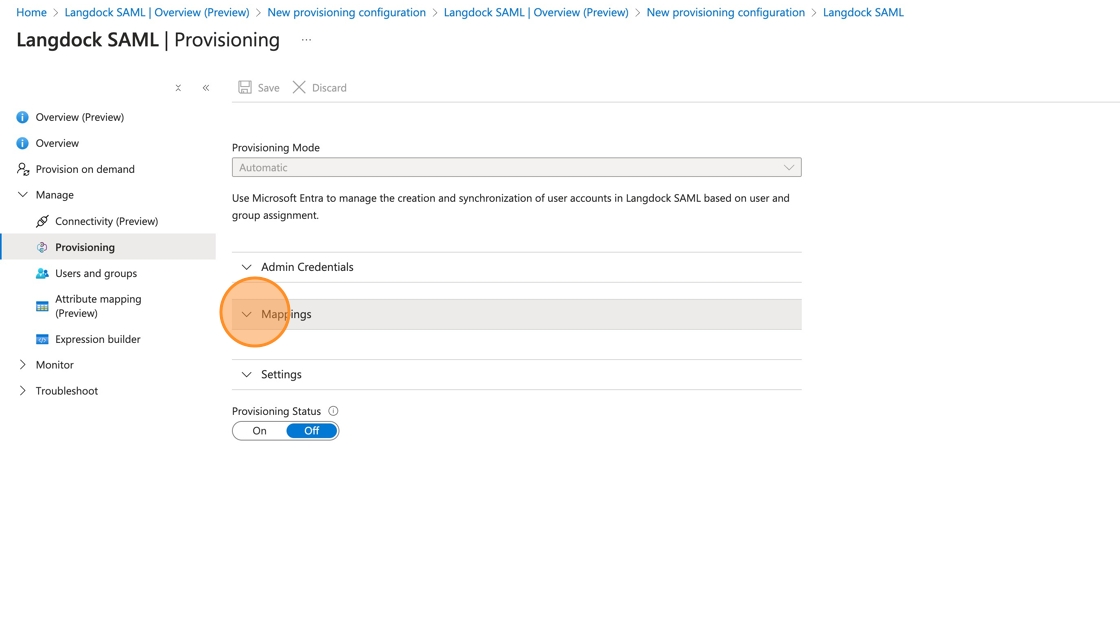
11. (Optional: Disabling group synchronization) Click "Provision Microsoft Entra ID Groups"

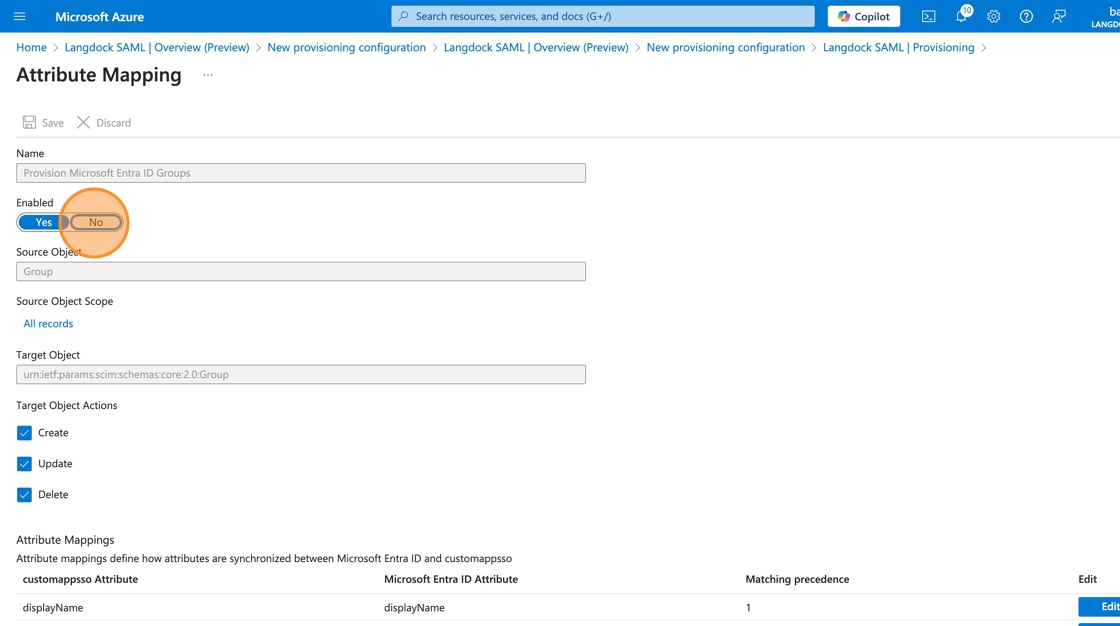
12. (Optional: Disabling group synchronization) Click "No"
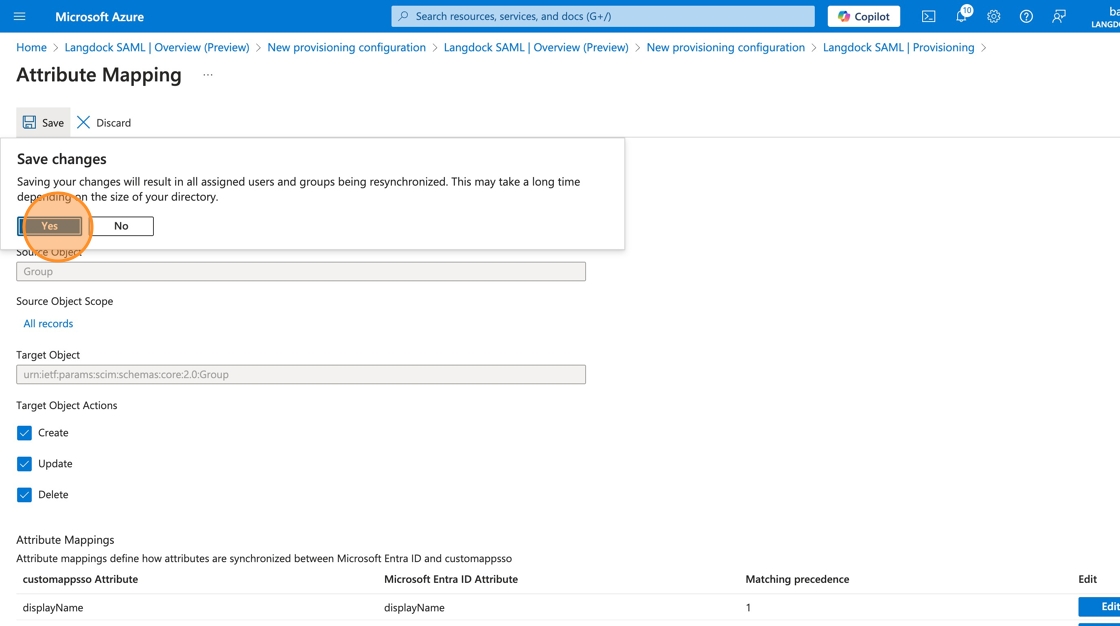
13. (Optional: Disabling group synchronization) Click "Save" then "Yes" to confirm changes
Enable provisioning
14. Recommended: Open down "Settings", click "Send an email notification when a failure occurs" and enter your email address

15. Click "On" to set provisioning status to enabled

16. Click on "Save" to finalize your changes

Verify your setup
17. To verify that the provisioning is working as expected, go to "Monitor" > "Provisioning logs" and check if your users have been successfully mapped to Odeus.
In case you don't see any logs, make sure to wait and check back in a couple of minutes. It can take a bit until the first synchronization is triggered.
If your setup was successful, you will see "Success" values in the status column.

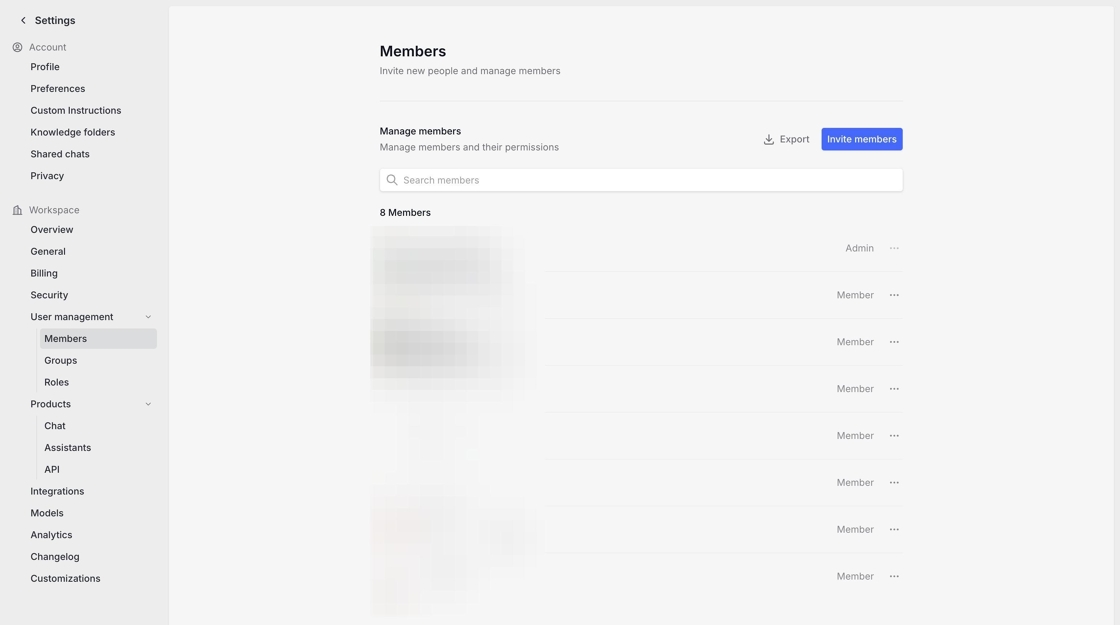
18. You should also see the newly synchronized users in your Odeus member settings.
Updating User Email Addresses (Domain Changes)
If your organization changes email domains (e.g., from @old-company.de to @new-company.de), SCIM can automatically update user email addresses in Odeus when you update them in Entra ID. However, the new domain must be configured in Odeus before the email change.
If you change user emails in Entra to a domain that is not added and verified in Odeus, the SCIM sync will fail for those users.
Requirements
Before updating user email addresses in Entra ID:
- The new email domain must be added to the allowed domains in your Odeus security settings
- The new domain must be verified (domain verification ensures you own the domain)
Process
Go to your [Odeus security settings](https://app.odeus.ai/settings/workspace/security) and add the new domain (e.g., `new-company.de`) to the list of allowed domains.


Add the new domain to the allowed domains in your workspace and then verify it by contacting the Odeus Support.


Once the domain is added and verified in Odeus, you can update the user email addresses in Microsoft Entra ID. The SCIM provisioning will automatically sync these changes to Odeus.


Check the provisioning logs in Entra ID (Monitor > Provisioning logs) to confirm the email updates were successful. You can also verify in your [Odeus member settings](https://app.odeus.ai/settings/workspace/user-management/members) that the user emails have been updated.
Existing user data (chat history, agents, etc.) will be preserved when updating email addresses via SCIM. The users are identified by their SCIM ID, not their email address.